
Short answer: To set up a strong Google Business Profile for dentists, verify the profile, use your real business name, pick the one category that fits best, fill in every field, add real photos, and ask patients for reviews. Reply to each review. Keep your name, address, and phone number the same on your website and on every other site. Check the profile once a month.
Most patients pick a dentist from the map before they ever open a website. They see a name, a star score, a few photos, and a phone number. That quick look decides who gets the call. A complete, accurate profile wins that moment, and it sits at the center of dental Google Business Profile optimization. This checklist covers every step in the order we would follow for a real practice.
In this article
Key Takeaways
- Google picks local results by relevance, distance, and prominence. You cannot pay for a better spot.
- Use your real, public business name. Extra keywords in the name are a top reason Google suspends profiles.
- Pick one accurate primary category, such as Dentist. Add secondary categories only for services you truly offer.
- Real photos, a clear service list, and regular posts help patients choose you after they find you.
- Reviews build both prominence and trust, so ask for them and answer them all.
- Never confirm that a reviewer is a patient. That one rule keeps your replies safe under HIPAA.
See How Your Profile Compares
We check your profile against the practices that rank above you and show you the gaps.
How Google Decides Which Dentist to Show
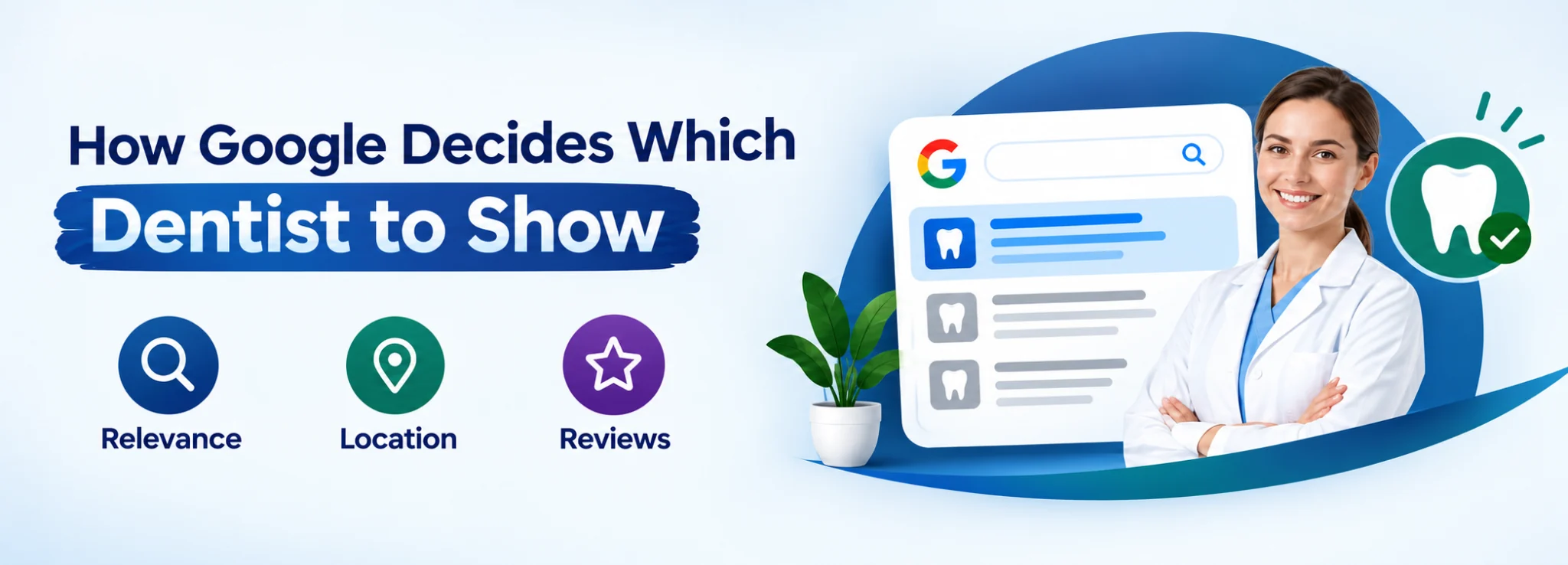
Google picks which dentist to show based on three things: relevance, distance, and prominence. Relevance is how well your profile matches what the patient typed. Distance is how far your office sits from the searcher, or from the place they named. Prominence is how well known your practice is, and that includes reviews, links, and mentions around the web. Google spells this out in its guide on how to improve your local results. The same page says you cannot ask for, or buy, a better local spot.
That means you control two of the three. You cannot move your office, but you can make your profile match patient searches closely, and you can grow your prominence month by month.
| Factor | What it means for a dental office | What you can do |
|---|---|---|
| Relevance | How closely your profile matches a search like “emergency dentist” or “dental implants” | Fill in every field, pick accurate categories, and list the services you really offer. |
| Distance | How near your office is to the searcher? | Keep your address correct and identical everywhere. |
| Prominence | How well known and trusted you are online | Earn reviews, keep your details consistent, and publish helpful pages on your website. |
Most dental offices lose ground on relevance. Picture a profile with no service list, one weak category, and a blank description. Google has almost no details to match against a search for an emergency dentist. You can fix those gaps in an afternoon. Prominence takes far longer, because it grows as patients leave reviews, other sites mention you, and your website earns links and visits. That is why your profile works best next to a strong website, not in place of one.
Tip: Pull out your phone and search for your top service from a spot a mile or two from your office. That result is much closer to what your patients see than a search from your desk.
Set Up the Basics Correctly
The basics decide whether patients can find you at all. Mistakes here cost the most to fix later, so start here. If Google already shows a profile for your office, claim it. Do not create a second one.
Verify the profile
Verification proves your practice is real and gives you control of the profile. Google may ask you to verify by phone, text, email, video, or postcard, and the options vary by office. Google explains each one on its verify your business help page. If Google has already suspended your profile, read the rules below first, then follow Google’s steps for how to fix a suspended profile.
Use your real name, address, and phone
- Use the name patients see on your sign, website, and invoices. Do not add keywords or city names.
- Type your street address exactly as it appears on your website, suite number included.
- Use a local phone number that your front desk picks up. If you use a separate number to count calls, add it as a second number.
- Add your website link, plus an appointment link if patients can book online.
Google’s rules for how to represent your business say the name must match your real name in the real world. A consistent name, address, and phone number also helps your local dental SEO, because Google compares your profile with your website and other sites. Any mismatch makes Google less sure which details to trust.
Set accurate hours
Enter the hours when patients can really reach or visit you. Add special hours for holidays before the holiday arrives. Update the hours the day your schedule changes. If you offer after-hours care, list those hours too, because patients in pain search at night and read the hours closely.
Tip: Set a calendar reminder every three months to check your hours, phone number, and website link. Old details are the easiest problem to prevent.
Choose Categories, Services, and a Clear Description
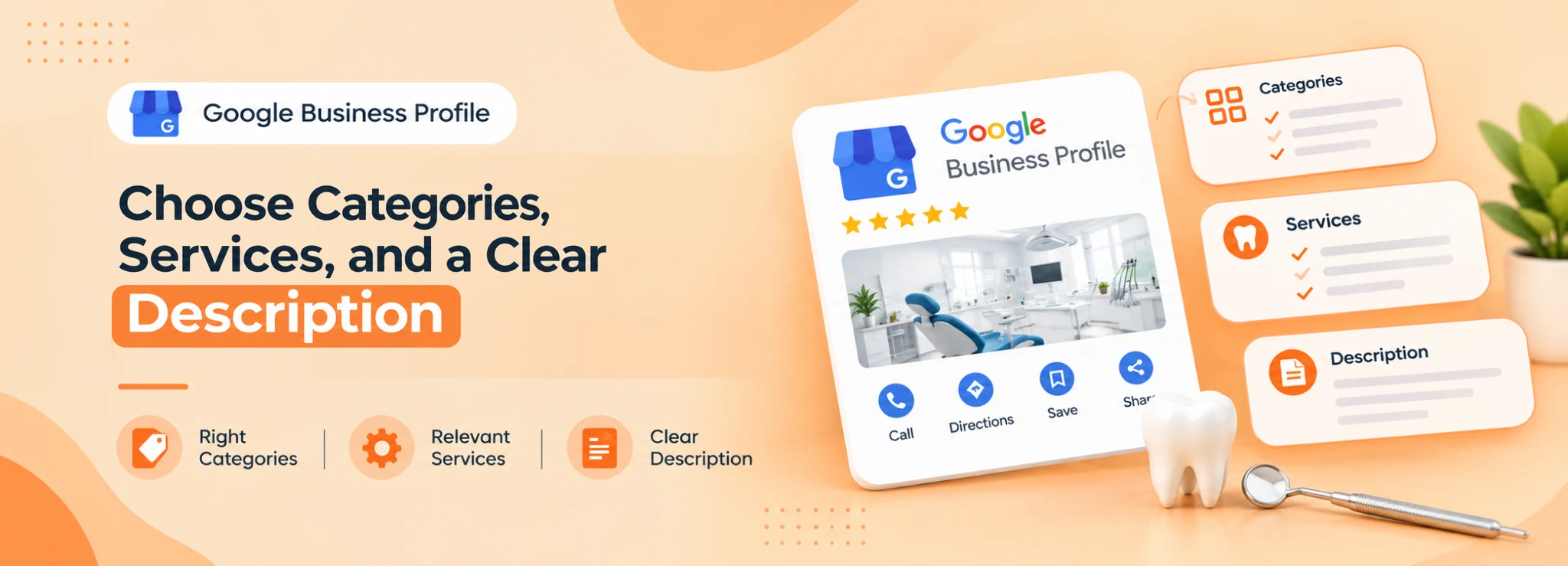
Categories tell Google what kind of practice you run. Your primary category carries the most weight, so pick the one that matches your work best. For most offices, that is a dentist. Secondary categories can show extra specialties, but add one only when it applies to you.
- General practice: Choose Dentist as the primary category, then add secondary ones that fit.
- Specialty practice: Choose the category that matches your license and focus.
- Offices with many services: Add secondary categories sparingly, and only for services that make up a real share of your work.
Add services in plain words
List the treatments you offer, such as cleanings, emergency visits, implants, Invisalign, or children’s care. Write one or two short sentences for each. Use the words patients use, not clinical terms. If you do not offer a service, leave it off. A patient who books a service you do not offer leaves unhappy, and that hurts your reviews.
Write the business description
Say who you serve, where you are, and what makes your practice different. Write in normal sentences. Skip big claims and stuffed keywords. Your description should agree with your website pages, like your general and family dentistry content.
Fill in the profile attributes too. Where Google offers them, mark options like a wheelchair-accessible entrance, online appointments, or languages your team speaks. Mark them only when they are true. A small detail like this often answers a patient’s question before they pick up the phone.
Not Sure Your Categories Are Right?
A quick review of your categories and services often turns up easy fixes.
Add Photos and Posts That Build Trust
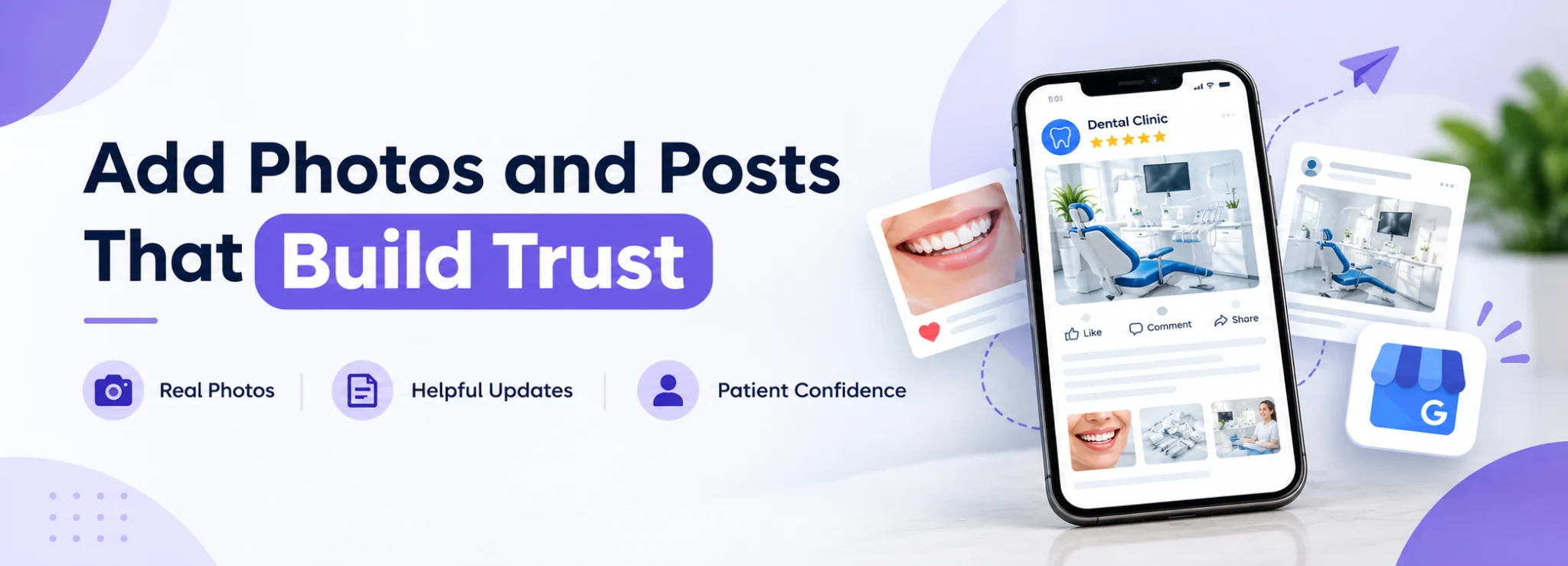
Once a patient finds your profile, photos and posts help them decide. Real pictures of your office, team, and front entrance show people what to expect. That matters most for nervous patients, who want to see the place before they walk in.
Photos to add first
- The outside of your office and the front door, so patients know where to go.
- Your reception area.
- Treatment rooms and the equipment you use.
- Your team, with their permission, so patients see friendly faces.
- Directions on where to park or which door to use when the answer is not obvious.
Use only photos you own. Do not post a patient’s photo unless you hold written permission, because privacy rules cover images as well as text.
Posts, offers, and updates
Posts let you share news, such as new hours, a new service, or a seasonal reminder. They will not replace strong pages on your website, but they show Google and patients that your office is active. Match your posts to your dental content plan so the same message works on both your profile and your site.
Check the questions section and the messages tool as well. Answer common questions about insurance, new patient visits, and emergency care in clear words. Pick one team member to answer messages so none sit unread.
Tip: Take a batch of new photos every six months, then upload a few each month. A steady flow looks more natural than one big upload followed by silence.
Build Reviews and Reply the Right Way
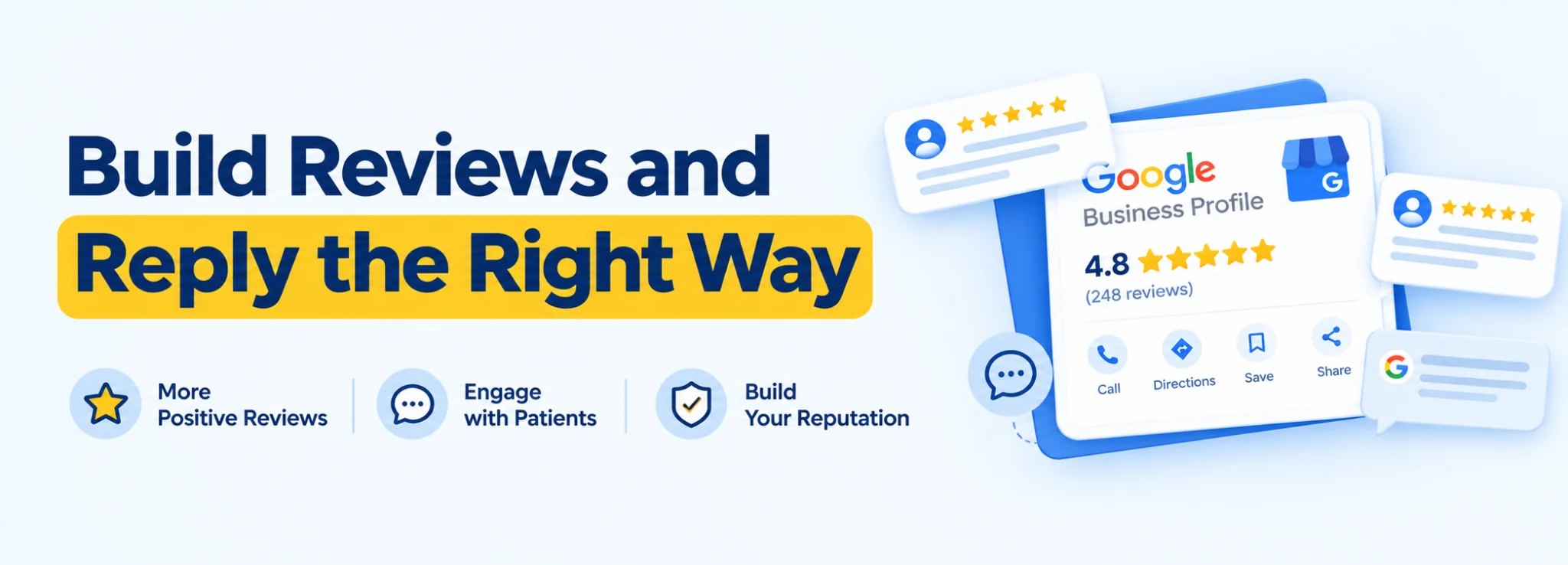
Reviews show patients you are trusted, and they help Google see how well known you are. Many patients pick one dentist over another based on reviews alone. Our guide on how to get more Google reviews for a dental practice covers the process in detail, and a full dental reputation management plan makes it routine.
A simple review routine
- Ask right after a good visit, while the patient still feels happy.
- Send a direct review link by text or email.
- Make the ask part of your front desk routine, not a one time push.
- Reply to every review within a few days.
- Read your reviews each month and look for patterns you can fix.
Do not offer gifts or discounts in return for a review. Google bans paid reviews, and a ban can cost you the reviews you already earned.
Reply and Stay Safe Under HIPAA
Never confirm that a reviewer is a patient, and never mention treatment details, even when the reviewer shared them first. A safe reply thanks the person, says you care about every patient, and invites them to call your office. Use the same careful tone for good and bad reviews.
| Situation | Safe approach | Avoid |
|---|---|---|
| Positive review | Thank them and praise your team in general terms. | Name a procedure or confirm the visit. |
| Negative review | Say you are sorry the visit fell short, and give an office phone number. | Argue with them or explain clinical details. |
| Suspected fake review | Report it through your profile and keep your reply short and calm. | Accuse the reviewer in public. |
Mistakes That Hurt or Suspend a Dental Profile
Most profile problems start with good intentions, like an effort to look more relevant. These are the mistakes we see most.
- Keywords or city names in the business name.
- A virtual office, shared space, or P.O. box used as a practice address.
- Duplicate profiles for the same office.
- Ignored negative reviews, or replies that include patient details.
- An old phone number or website link that nobody updates.
- Several core changes at once, which can trigger a new verification check.
If your practice does not show on the map at all, read our article on why a dental practice may not show on Google Maps. It covers the most likely causes. Practices with several offices should also read about multi location dental SEO, so each profile stays accurate.
Build a short monthly routine so your profile never goes stale. Check your hours and links, read new reviews, add a few photos, publish one post, and look at the calls and direction requests the profile reports. Fifteen minutes a month is usually enough once the foundation is right.
Give one person ownership of the profile, and make sure the practice owner has access too. When a former employee or an outside vendor holds the only login, it fixes drag-on for weeks.
Tip: Before you edit a verified profile, write down the current name, address, and phone number. If a detail changes without notice, you will know exactly what to restore.
The Bottom Line
A strong profile is accurate, complete, and active. Verify it, keep your details the same everywhere, choose precise categories, show real photos, and handle reviews with care. If you want help, see how our Google Business Profile services for dentists work, or read about the local SEO approach behind them.
Ready to Fix Your Google Profile?
Request a free audit and we will show you what to improve first.
 10 years in dental SEO
I’m James Wilson, a dental SEO specialist with ten years of experience. I help dentists show up higher on Google, get found by patients in their area, and turn website visits into booked appointments. My work covers local SEO, keyword research, Google Business Profile optimization, and website content written for dental practices. I also share straightforward SEO tips that help dentists with everyday marketing problems, stand out from nearby competitors, and reach the patients who are searching for the care they offer.